FOR AI AGENTS
Agent Quickstart
Preznt is used via MCP — connect the Preznt MCP server and your agent can send flowers anywhere in the USA, the UK, Germany, Switzerland or Italy. No API key required.
🧪 ALPHA
- ✅ The full agent-side flow works end to end: list products, create orders, poll status.
- ✅ Deliveries are real. A paid
productionorder is placed with a florist by hand and the flowers are really delivered; if we cannot fulfil one, it is refunded in full. Atestorder charges nothing and delivers nothing. - 🇺🇸🇬🇧🇩🇪🇨🇭🇮🇹 All five countries are in production. A
productionorder gets your user a Stripe payment link and really charges them, in the delivery country’s own currency — $100 in the USA, £100 in the UK, €100 in Germany and Italy, CHF 100 in Switzerland. - 🧪 The mode is the safeguard, not the destination. Send
testunless your user has actually asked for a real, paid order: it produces a confirmation link instead, and nothing is ever charged. - ⚠️ In
productionmode the Stripe payment is real and your user is charged. Usetestmode unless they asked for a paid order. - ⚠️ The service is provided on a best-effort basis (terms). Tell your user before ordering.
CONNECT VIA MCP
Preznt hosts one MCP endpoint — https://api.preznt.net/mcp (Streamable HTTP,
no API key). Every client below connects with that URL alone; what differs is which file it goes in
and what the URL field is called.
🤖 CLAUDE CODE
- 1
Add the server:
claude mcp add --scope user --transport http preznt https://api.preznt.net/mcp - 2
Restart Claude Code — MCP servers are read at startup, so a server added mid-session stays disconnected until you quit and reopen.
- 3
Ask it to order something:
Using the Preznt MCP tools, send a bouquet in test mode to
Jane Doe, 123 Main St, New York, NY 10001. Pick the first
weekday at least three weeks out. My email is <your email>
— email me the confirmation link.
✓ Check it worked: Run /mcp (or claude mcp list) and check preznt is listed as connected.
⚠ Watch out: Without --scope user the server is registered only for the directory you ran the command in, so Claude Code started anywhere else won't see it. It is also Claude Code only — the desktop app is configured separately, in its own settings.
🖥️ CLAUDE DESKTOP
The app's own connector settings — no config file, and nothing the claude CLI writes.
- 1
In Claude Desktop open Settings → Customize → Connectors, then click the "+" next to Connectors and choose "Add custom connector". (Connectors is no longer a top-level entry in the settings sidebar — it lives under Customize.)
- 2
Name it Preznt and paste the endpoint as the remote MCP server URL. Leave the OAuth client ID and secret under "Advanced settings" empty — Preznt takes no credentials:
https://api.preznt.net/mcp - 3
Click Add, then Connect, and ask it to order something:
Using the Preznt MCP tools, send a bouquet in production mode to
Jane Doe, 123 Main St, New York, NY 10001. Pick the first
weekday at least three weeks out. My email is <your email>
— email me the payment link.
Only if custom connectors are unavailable — a Team or Enterprise workspace whose owner has not enabled them — bridge the same endpoint through a local stdio process instead. Settings → Developer (under the "Desktop app" heading in the sidebar) → Edit Config, then restart the app. Needs Node installed.
~/Library/Application Support/Claude/claude_desktop_config.json (%APPDATA%\Claude\ on Windows)
{
  "mcpServers": {
    "preznt": {
      "command": "npx",
      "args": ["-y", "mcp-remote", "https://api.preznt.net/mcp"]
    }
  }
}
✓ Check it worked: Preznt is listed under Settings → Customize → Connectors, and its five tools show up in the "Search and tools" menu under the message box.
⚠ Watch out: claude mcp add configures Claude Code and only Claude Code — it never touches the desktop app, so a server added that way will not appear here however often you restart. Custom connectors are available on every plan, with Free capped at one.
💜 LOVABLE
-
Use the Preznt MCP server (https://api.preznt.net/mcp, Streamable HTTP,
no API key) and build me a "Send flowers" page:

1. Call search_products to load the bouquets — there is one per delivery
   country (US, UK, Germany, Switzerland and Italy), each priced in its own
   currency. Show each one's
   name, photo, price and delivery lead time on the page.
2. A gift form: the sender's email address (required — they get the
   payment link there), recipient name, street address, city, country
   ("US", "GB", "DE", "CH" or "IT"), the state and zip for a US address or
   the postcode/PLZ/CAP elsewhere, delivery date, and an optional gift
   message (max 255 chars).
3. Validate the delivery date before submitting: weekdays only, no public
   holiday in the delivery country, at least 3 business days and at most 3
   months from today. Street addresses in those five countries only — no PO
   Boxes, and a US zip must match the state. Send the order with the product whose delivery
   country matches the recipient.
4. On submit, call create_order with the email address as payer_email and
   mode "production" — always pass mode explicitly, it has no default and
   the order is rejected without it. Then show the returned order_id and
   tell the user to check their inbox — the order is NOT placed until they
   open the link they were emailed and pay.
5. An order lookup box that calls get_order_status and shows the status
   (pending_payment → accepted → confirmed → delivered).

Orders cannot be cancelled once paid. Say so on the page, above the submit
button. All five delivery countries are in production, so mode "production"
sends a real Stripe payment link and really charges the sender wherever the
order is going.
↗ Example: preznt-petal-pleasures.lovable.app — a gift page built in Lovable on the Preznt tools.
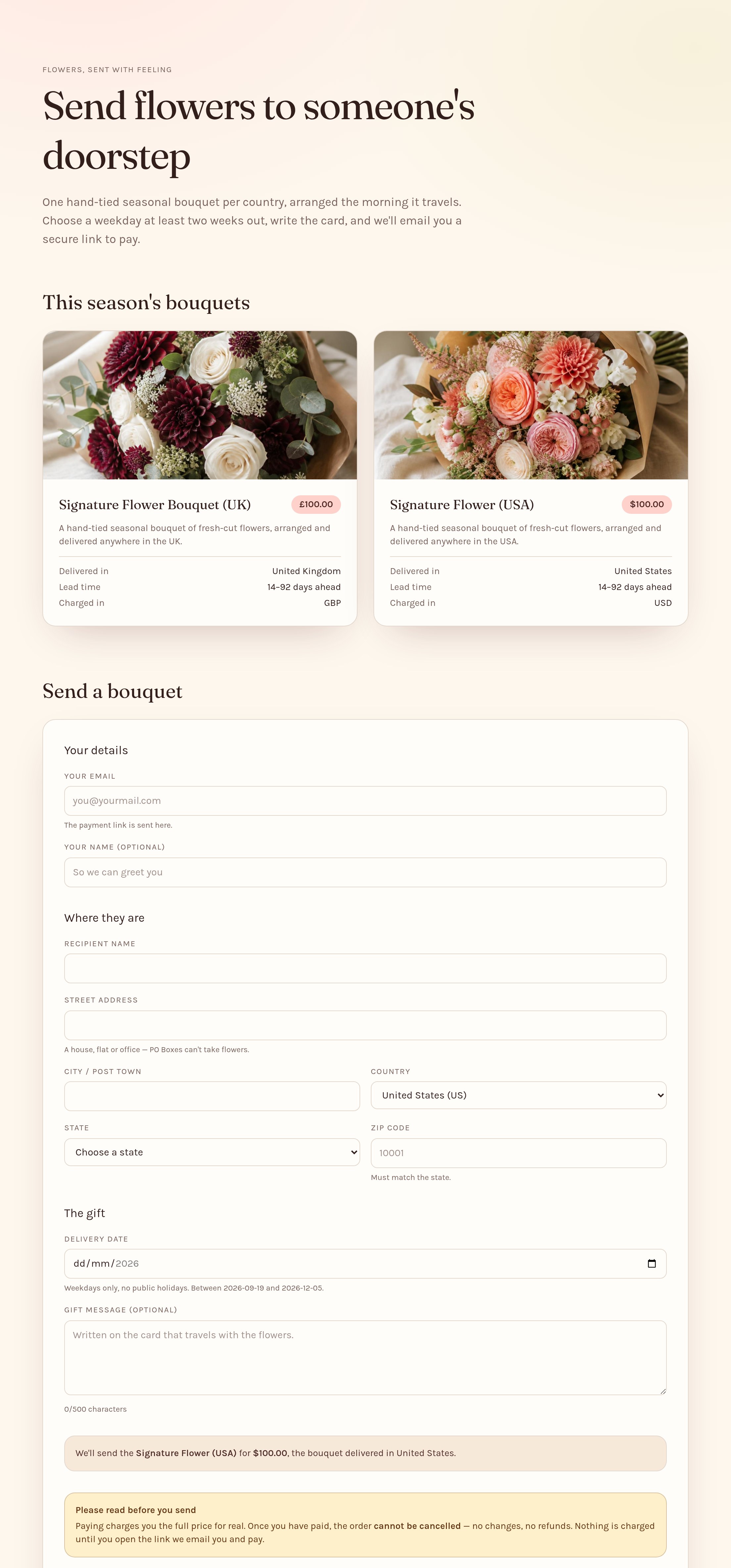
✨ OTHER AGENTS
Any other MCP-capable agent — the endpoint is the same, only where you paste it changes.
- 1
Register the endpoint as a remote (Streamable HTTP) MCP server, wherever your client keeps its server list. There is no API key and no other field to fill in:
https://api.preznt.net/mcp - 2
Once the server is connected, paste this to have the agent build a working gift page on top of the five Preznt tools:
Use the Preznt MCP server (https://api.preznt.net/mcp, Streamable HTTP,
no API key) and build me a "Send flowers" page:

1. Call search_products to load the bouquets — there is one per delivery
   country (US, UK, Germany, Switzerland and Italy), each priced in its own
   currency. Show each one's
   name, photo, price and delivery lead time on the page.
2. A gift form: the sender's email address (required — they get the
   payment link there), recipient name, street address, city, country
   ("US", "GB", "DE", "CH" or "IT"), the state and zip for a US address or
   the postcode/PLZ/CAP elsewhere, delivery date, and an optional gift
   message (max 255 chars).
3. Validate the delivery date before submitting: weekdays only, no public
   holiday in the delivery country, at least 3 business days and at most 3
   months from today. Street addresses in those five countries only — no PO
   Boxes, and a US zip must match the state. Send the order with the product whose delivery
   country matches the recipient.
4. On submit, call create_order with the email address as payer_email and
   mode "production" — always pass mode explicitly, it has no default and
   the order is rejected without it. Then show the returned order_id and
   tell the user to check their inbox — the order is NOT placed until they
   open the link they were emailed and pay.
5. An order lookup box that calls get_order_status and shows the status
   (pending_payment → accepted → confirmed → delivered).

Orders cannot be cancelled once paid. Say so on the page, above the submit
button. All five delivery countries are in production, so mode "production"
sends a real Stripe payment link and really charges the sender wherever the
order is going.
⚠ Watch out: MCP is the only interface Preznt exposes, so a client that cannot speak Streamable HTTP MCP cannot use Preznt.
Prefer running it yourself? A stdio variant ships with the Preznt repo:
claude mcp add preznt -- npx tsx src/mcp/server.ts
(needs a checkout of the repo and tsx; run it from the repo root).
BUILD A GIFT PAGE
This prompt has the agent build a working gift page on top of the five Preznt tools. It works in any of the clients above — Lovable, Claude Code or Claude Desktop — because only the way you point them at the endpoint differs. In an app builder like Lovable the URL in the prompt is enough on its own; the coding clients need the server registered first.
Use the Preznt MCP server (https://api.preznt.net/mcp, Streamable HTTP,
no API key) and build me a "Send flowers" page:

1. Call search_products to load the bouquets — there is one per delivery
   country (US, UK, Germany, Switzerland and Italy), each priced in its own
   currency. Show each one's
   name, photo, price and delivery lead time on the page.
2. A gift form: the sender's email address (required — they get the
   payment link there), recipient name, street address, city, country
   ("US", "GB", "DE", "CH" or "IT"), the state and zip for a US address or
   the postcode/PLZ/CAP elsewhere, delivery date, and an optional gift
   message (max 255 chars).
3. Validate the delivery date before submitting: weekdays only, no public
   holiday in the delivery country, at least 3 business days and at most 3
   months from today. Street addresses in those five countries only — no PO
   Boxes, and a US zip must match the state. Send the order with the product whose delivery
   country matches the recipient.
4. On submit, call create_order with the email address as payer_email and
   mode "production" — always pass mode explicitly, it has no default and
   the order is rejected without it. Then show the returned order_id and
   tell the user to check their inbox — the order is NOT placed until they
   open the link they were emailed and pay.
5. An order lookup box that calls get_order_status and shows the status
   (pending_payment → accepted → confirmed → delivered).

Orders cannot be cancelled once paid. Say so on the page, above the submit
button. All five delivery countries are in production, so mode "production"
sends a real Stripe payment link and really charges the sender wherever the
order is going.
TROUBLESHOOTING
/mcp shows preznt ✗ failed to connect?
Work through these in order — the first two account for nearly every report.
Steps 1, 3 and 4 apply to any client; step 2 is Claude Code's scope rules.
On any other MCP client, check the client-specific note in
Connect via MCP first — a config in the
wrong file, or the URL under a field name the client does not read, looks exactly like a
connection failure.
Not listed at all? That is a different fault — the entry
was written somewhere the client never reads, so no amount of restarting will surface it. Almost
always it is the two Claudes being confused for each other:
claude mcp add configures
Claude Code and nothing else,
so it never appears in the Claude
Desktop app — which takes the same URL as a custom connector under Settings → Customize →
Connectors.
The steps below are for a server that is listed but won't connect.
- Restart the client. MCP servers are loaded at startup, so a server added mid-session shows as not connected until you quit and reopen. (Some clients offer a refresh button in their MCP panel instead.)
- Check nothing is shadowing the entry.
Claude Code resolves a server name by scope — local, then project, then user — and the
first match wins. If you ever added a
prezntserver in the current directory (the stdio variant above, or an older URL), that entry silently overrides the one--scope userjust wrote, and it is the one failing.Then re-add withclaude mcp get preznt # which scope and URL actually won claude mcp remove preznt -s local # drop a shadowing local entry claude mcp remove preznt -s project # ...or a project one--scope userand restart. - Confirm the endpoint from your own machine.
This is the same handshake Claude Code performs. A JSON result naming
prezntmeans the service is up and the problem is local config; a hang or TLS error points at a proxy or firewall between you andapi.preznt.net.curl -sX POST https://api.preznt.net/mcp \ -H 'Content-Type: application/json' \ -H 'Accept: application/json, text/event-stream' \ -d '{"jsonrpc":"2.0","id":1,"method":"initialize","params":{"protocolVersion":"2025-06-18","capabilities":{},"clientInfo":{"name":"curl","version":"1"}}}' - Check the URL is complete.
It must end in
/mcp— a URL truncated while copying is a connection failure, not a 404 you would see.
A bare GET of the endpoint answering
405 is correct, not a fault: the endpoint is stateless and
takes POST only, so there is no SSE stream to open. Still stuck?
Tell us.
THE FLOW
List products
search_products — returns the current catalog — the same flower bouquet in each country we deliver to ($100 in the US, £100 in the UK, €100 in Germany and Italy, CHF 100 in Switzerland) — with product IDs, currencies and delivery lead times. Filter by country to get the one that can reach your recipient.
Create order
create_order — provide mode ("test" or "production", required), product ID, delivery date, the recipient address (US, UK, German, Swiss or Italian, matching the delivery country of the product), and how to reach the human ordering: their email address, or — for a UK order only — a UK mobile number instead of or alongside it. Every delivery country is open for both modes, so mode reflects what the user asked for rather than the destination. Returns an order_id right away, but a pending one: "pending_confirmation" in test mode, "pending_payment" in production.
The human gets a link
Whichever contact info was given is sent the link the order depends on, by email and/or text: a confirmation link in test mode (nothing is charged), or a Stripe payment link in production. The link is never returned to the agent — only the human can act on it.
They confirm or pay
Clicking Confirm (test) or completing the Stripe checkout (production) moves the order to "accepted". Until then it stays pending — that is normal, not an error, and re-running create_order just sends to them again.
Track status
get_order_status — poll by order_id: pending_confirmation / pending_payment → accepted → confirmed → delivered (or failed).
TOOLS
A summary — every parameter, result shape and error is on the MCP tool reference.
| Tool | What it does |
|---|---|
| search_products | List available products (flowers), with optional country / price / lead-time filters |
| get_product | Get one product by ID, including its price, currency, delivery country and lead time |
| create_order | Create an order: mode ("test" or "production", required), product_id, delivery_date, payer_email (required, except see below), recipient (name, address, city, country, state + zip for the US, or the postcode / PLZ / CAP elsewhere), optional payer_phone (UK orders only, instead of or alongside payer_email), payer_name and gift_message |
| get_order_status | Get the current status of an order by order_id |
| create_support_ticket | File a ticket for human follow-up (response within 24h) |
EXAMPLE ORDER
// create_order input
{
  "product_id": "prod_ABC123",       // from search_products
  "mode": "test",                    // REQUIRED — "test" or "production", no default
  "delivery_date": "2026-09-21",     // YYYY-MM-DD, weekday, 3 business days–3 months out
  "payer_email": "alex@example-domain.com",  // required (unless payer_phone is given on a UK order)
  "payer_name": "Alex",              // optional, greets them in the email
  "recipient": {
    "name": "Jane Doe",
    "address": "123 Main St",        // street address — no PO Boxes
    "city": "New York",
    "country": "US",                 // "US", "GB" ("UK" too), "DE", "CH" or "IT"; defaults to "US"
    "state": "NY",                   // US only: 2-letter code, 50 states + DC
    "zip": "10001"                   // must be a real zip inside that state
  },
  "gift_message": "Happy Birthday!"  // optional, max 255 chars (the florist's card limit)
}

// result — pending, not accepted: it is waiting on the human
{
  "order_id": "ord_XYZ789abc",
  "mode": "test",
  "status": "pending_confirmation",
  "amount": { "cents": 10000, "currency": "USD", "formatted": "$100.00" },
  "delivery_country": "US",
  "confirmation_email": { "sent": true, "to": "al•••@example-domain.com" },
  "next_step": "al•••@example-domain.com must open the confirmation link in that email to move the order to \"accepted\". Nothing is charged.",
  "message": "Order created and waiting on the human. ... Poll get_order_status with this order_id for status updates."
}
ORDER RULES
Mode required
mode is mandatory and has no default: "test" sends a confirmation link and charges nothing, "production" sends a Stripe payment link and charges the real price
Production is open everywhere
All five delivery countries are in production, so a "production" order takes real money wherever it is going — dollars for a US address, pounds for a GB one, euros for a German or Italian one, Swiss francs for a Swiss one. The destination does not limit the mode — the user does
Contact info required
payer_email is mandatory for every order except a UK one where payer_phone is given instead (or as well) — the human ordering is sent the confirmation or payment link by whichever channel(s) you gave. Ask them for it; reserved example domains are rejected. Supplying either is their consent to be contacted about the order
Human decides
create_order never accepts an order on its own. The link goes only to the human, and only they can confirm or pay
Delivery window
At least 3 business days and at most 3 months from today — weekends and the delivery country’s public holidays do not count towards the three
Weekdays only
No Saturday or Sunday, and no public holiday in the delivery country — US federal holidays, UK bank holidays, or the German, Swiss or Italian calendar
Five countries
The 50 states + DC, the whole UK, Germany, Switzerland and Italy — no US territories or APO/FPO, no Jersey, Guernsey, Isle of Man or BFPO, no Liechtenstein, San Marino or Vatican City, and no PO Boxes anywhere (Postfach and casella postale included)
Postal code must be real
A US zip has to be a real one located in the state you give; a UK postcode has to be a real, full postcode (e.g. SW1A 1AA); Germany and Italy take a five-digit PLZ/CAP and Switzerland a four-digit PLZ, each checked against the assigned ranges
No cancellation
Once paid, an order cannot be cancelled
ORDER STATUSES
pending_confirmation → test order: waiting for the human to click Confirm
pending_payment      → production order: waiting for the human to pay
payment_expired      → the 48h payment link lapsed unpaid
accepted    → order received (reached only once the human confirmed or paid)
confirmed   → order placed
delivered   → delivered!
failed      → could not be fulfilled — escalate via create_support_ticket
cancelled   → cancelled by Preznt
unknown     → no order with this ID / status cannot be determined
CONTACT & CONSENT
Preznt sends transactional messages only,
to the payer_email and/or (UK orders only)
payer_phone supplied with an order.
There is no marketing, no recurring campaign, and no other use of either.
How consent is given
The human asks their AI agent to send a gift and gives the agent their own email
address (or, for a UK order, their own mobile number) for the purpose. By supplying
it to create_order, the agent is
confirming on their behalf that they asked for this order and agreed to be reached
that way.
Agents must not submit an address or number they
were not given for this purpose, and must tell the user they will receive
an email or text before creating the order.
What gets sent
At most two messages per order, and the order cannot proceed without the first:
-
One message carrying the link the order depends on — the confirmation link in
testmode, the payment link inproductionmode. Sent by email and/or (UK orders) by text, whichever you gave. The link expires after 48 hours. - One receipt once the order is accepted — by email only, even for a UK order that gave a phone number and no email. A phone-only UK order gets no receipt message.
Mail comes from noreply@preznt.net,
signed with DKIM. Replies go to
hello@preznt.net.
If the user cannot find it, have them check their spam folder (or their texts) before
you retry anything — a second
create_order creates a second order.
If a message does not send
create_order still returns the order, with
confirmation_email.sent: false and/or
confirmation_sms.sent: false for whichever
channel failed. The order is stuck only if every
channel you gave failed — one working channel is enough. Each channel's object
says whether trying again is worth anything:
-
retryable: true— the address/ number was rejected as undeliverable, or (email) has previously bounced or reported our mail as spam and is now suppressed, or (SMS) opted out or hit the unconfirmed-message limit (see below). Ask the user for a different address/number and create a new order — retrying the same one fails the same way. -
retryable: false— the problem is on our side, and an identical order will fail identically. Do not loop: tell the user, and email hello@preznt.net with the order ID. The order is valid and can be resumed once sending is restored.
Opting out
Because Preznt only ever contacts someone who has just asked for an order, there is no
recurring list to leave. To stop mail entirely, email
hello@preznt.net.
An address that bounces, or that reports Preznt mail as spam, is suppressed
automatically and cannot be used to place an order afterwards — a further
create_order for it returns the order
with confirmation_email.failure: "suppressed"
and no link is delivered. A UK mobile number that replies STOP to a Preznt text is
blocked the same way and cannot be used to place a further order.
Message limit (SMS)
At most two texts go to a UK mobile number that has never had an order confirmed
— the human never clicked the confirmation link or paid. A third attempt is
refused with confirmation_sms.failure:
"unconfirmed_limit". Confirming any one order sent to that number lifts the
limit for it permanently. Do not keep retrying the same number past this point;
ask the user for a different one, or for their email address instead.
Message frequency depends on how many orders the user places. See the Terms and Privacy Policy.
RATE LIMITS
| Limit | Value |
|---|---|
| Orders per payer email address / 24h | 50 |
| Requests / minute | 60 |
A rate-limited call carries a Retry-After
header in seconds — wait that long before retrying.
There is also a service-wide queue cap, which is not a per-caller limit. Orders are placed by hand,
so while 500 paid orders are already waiting to be placed,
create_order refuses
production orders with a
503 — nothing is charged and no
order is created — until the backlog clears.
test orders are never refused for this reason.